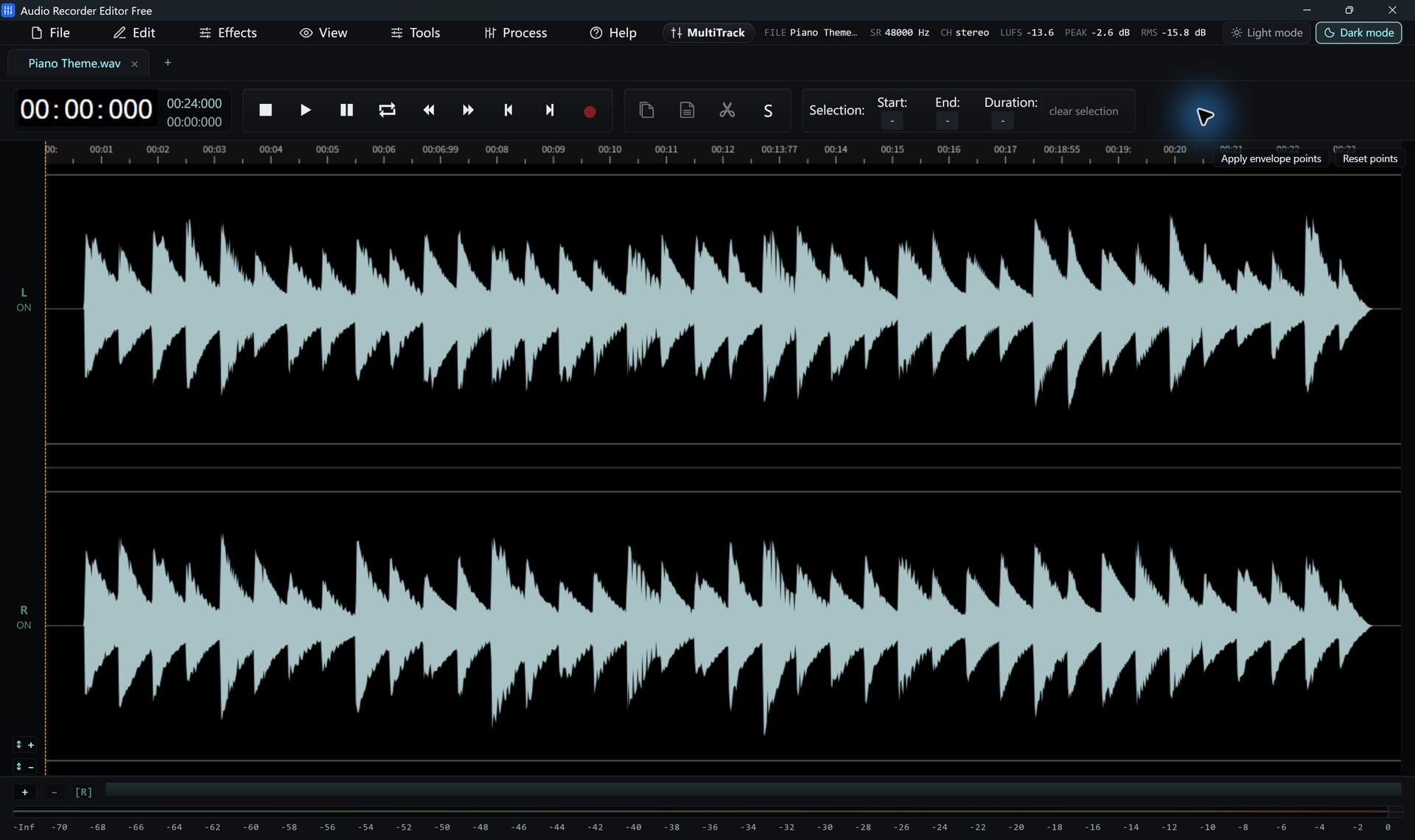
Steps
- Open the long recording.
- Choose Process › Split by Silence.
- Set the silence threshold: how quiet counts as silence.
- Set the minimum silence (how long a gap must last) and the minimum clip length, so short pauses don’t create tiny pieces.
- Add a little padding so words and notes aren’t clipped.
- Check the preview count, then add markers, open the pieces as tabs, or save them as WAV files.
Starting values
| Recording | Minimum silence | Minimum clip |
|---|---|---|
| Songs from vinyl or tape | 1.5–2 s | 30 s |
| Lecture or audiobook | 2–3 s | 60 s |
| Voice notes | 0.8–1 s | 3 s |
Prefer to choose the cut points?
Add markers by hand where you want cuts, then use Slice at markers to save each piece as a WAV file.
Follow along for freeAudio Recorder Editor Free has every tool in this tutorial. No registration.
Free DownloadQuestions about this task
Can I save the pieces as MP3?
Pieces are saved as WAV. Convert them all at once with the batch converter, which is free.
Try It On Your Own Audio
Audio Recorder Editor Free costs nothing. Install it and follow along.
Download Free for WindowsFree forever · Windows 11 & 10 (64-bit) · No registration