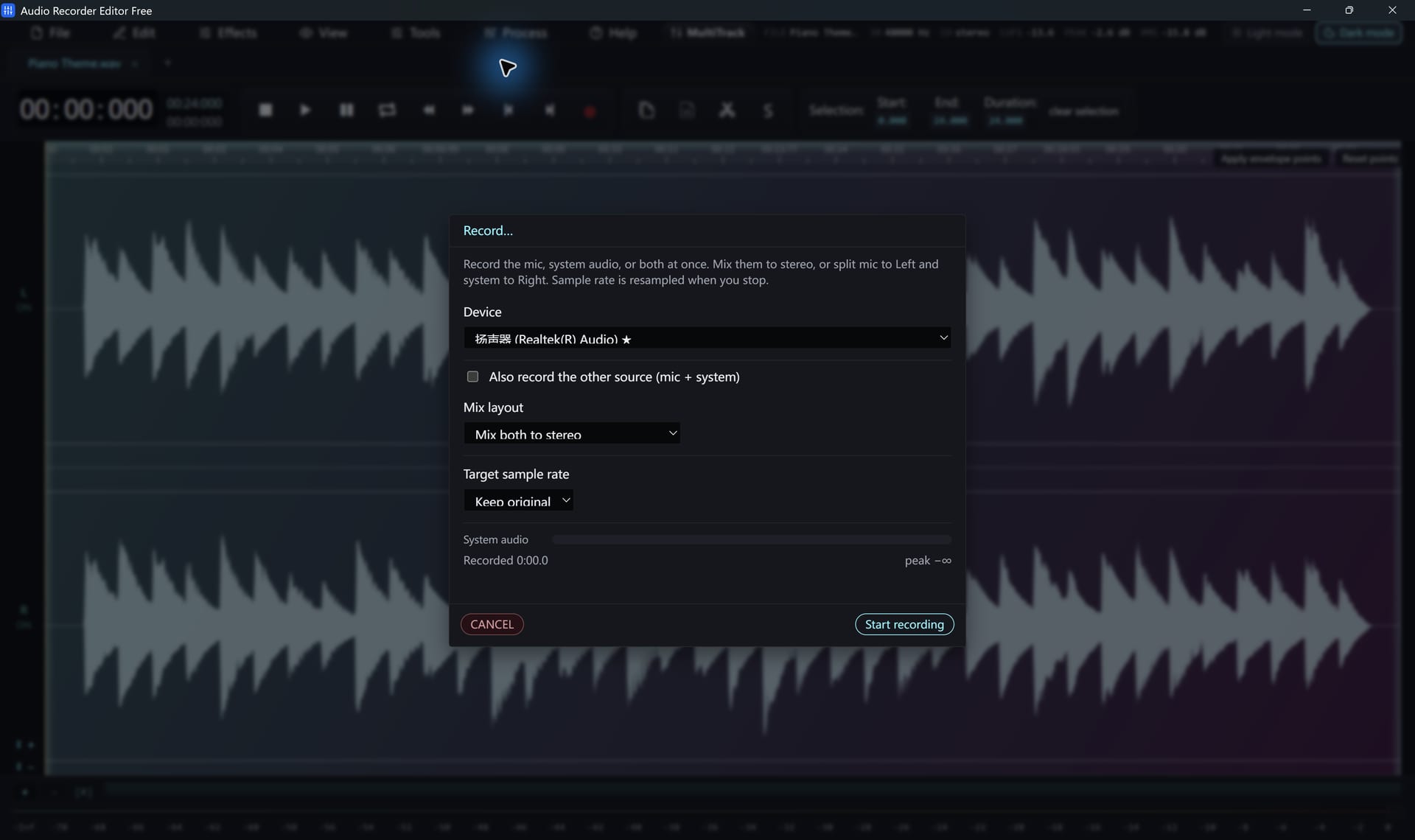
Record what you hear
- Choose Tools › Record.
- Select the speakers or headphones you are listening on as the playback device.
- Start playing the sound, then click Start. The meter moves as the sound plays.
- Click Stop. The recording opens in the editor.
Add your microphone
Turn on the additional source and pick your mic. Then choose a layout:
- Mixed stereo: voice and computer sound together, ready to share.
- Split left/right: your mic on one channel and the computer on the other, in one stereo file, so you can balance them later.
Everything Windows plays is recorded, including notification sounds. Turn on Do Not Disturb before a long recording.
Good uses
- Saving a webinar or online class for later
- Recording your side and the other side of a call (ask first)
- Capturing game audio with commentary
- Recording a text-to-speech voice, see this tutorial
Respect copyright and the terms of the service you record from.
Follow along for freeAudio Recorder Editor Free has every tool in this tutorial. No registration.
Free DownloadQuestions about this task
Why is my recording silent?
Usually the wrong playback device is selected. Pick the one you actually hear sound from, such as headphones rather than speakers.
Can I record at 48 kHz for video?
Yes. Choose 48 kHz in the recorder if your device supports it.
Try It On Your Own Audio
Audio Recorder Editor Free costs nothing. Install it and follow along.
Download Free for WindowsFree forever · Windows 11 & 10 (64-bit) · No registration