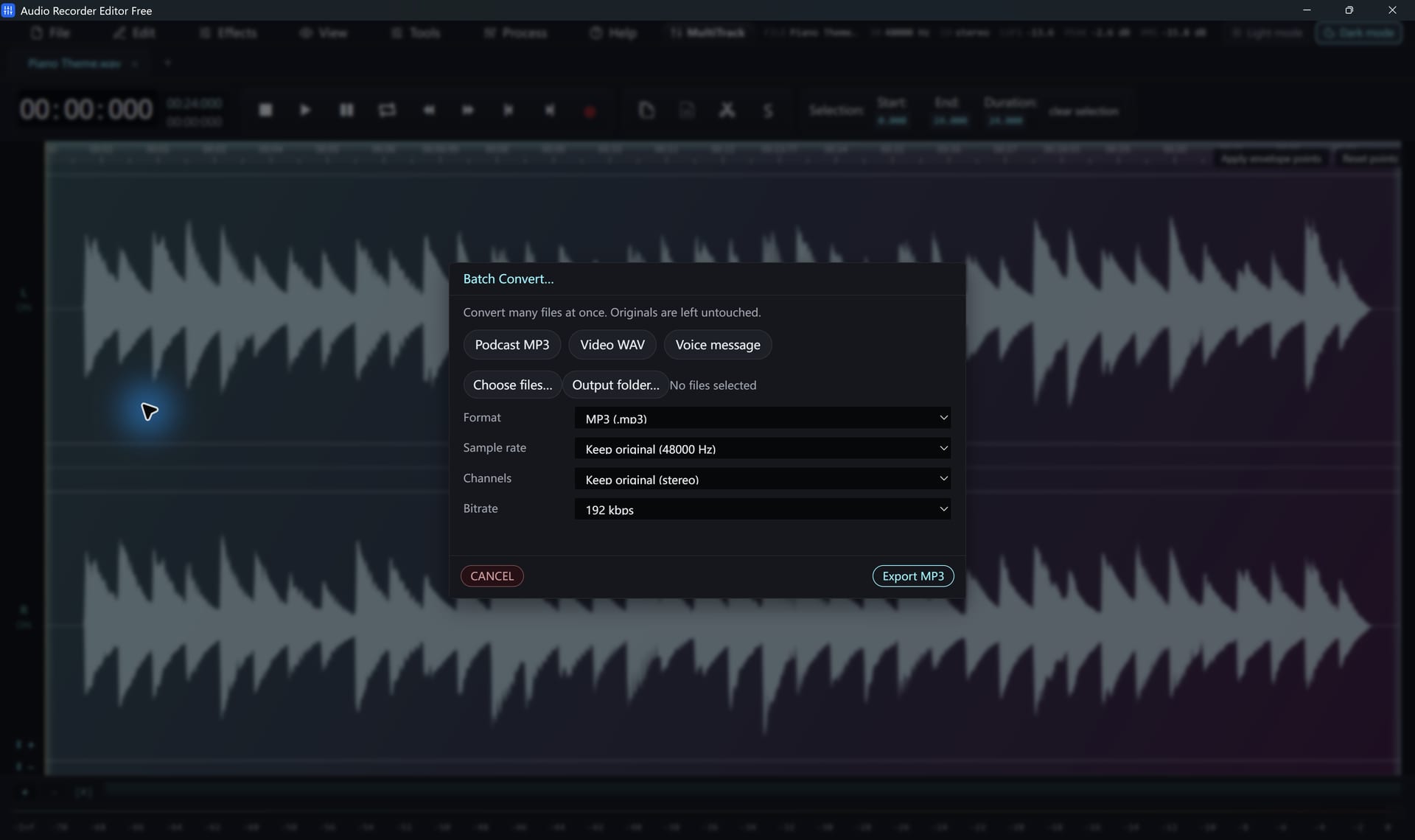
Convert a folder
- Open the batch converter (press Ctrl+K and type “batch”).
- Add the files, or add a whole folder.
- Choose the output folder.
- Pick a format or a preset: Podcast MP3, Video WAV 48 kHz or Voice note.
- Set the sample rate, channels and bitrate, or keep the source values.
- Click Convert. Progress is shown for each file and you can cancel at any time.
Which format should I pick?
| Format | Best for |
|---|---|
| MP3 (192–320 kbps) | Music and podcasts that must play everywhere |
| M4A / AAC | iPhone, iTunes and smaller files at the same quality |
| FLAC | Lossless archives that take less space than WAV |
| WAV | Editing, video projects and maximum compatibility |
| Opus / OGG | Small voice files and web use |
Batch conversion changes format and settings. It does not apply the edits you made in the editor to every file.
Follow along for freeAudio Recorder Editor Free has every tool in this tutorial. No registration.
Free DownloadQuestions about this task
Will converting MP3 to FLAC improve quality?
No. FLAC keeps what is there, but it cannot restore what MP3 already removed.
Are converted files overwritten?
New conversion copies get a unique name, so your originals stay as they are.
How many files can I convert at once?
There is no fixed limit in the program. Very large batches simply take longer; you can watch progress for each file and cancel at any time.
Can I convert video files to MP3 in a batch?
Yes. Add video files as sources and pick MP3 as the output; only the audio is converted.
Try It On Your Own Audio
Audio Recorder Editor Free costs nothing. Install it and follow along.
Download Free for WindowsFree forever · Windows 11 & 10 (64-bit) · No registration