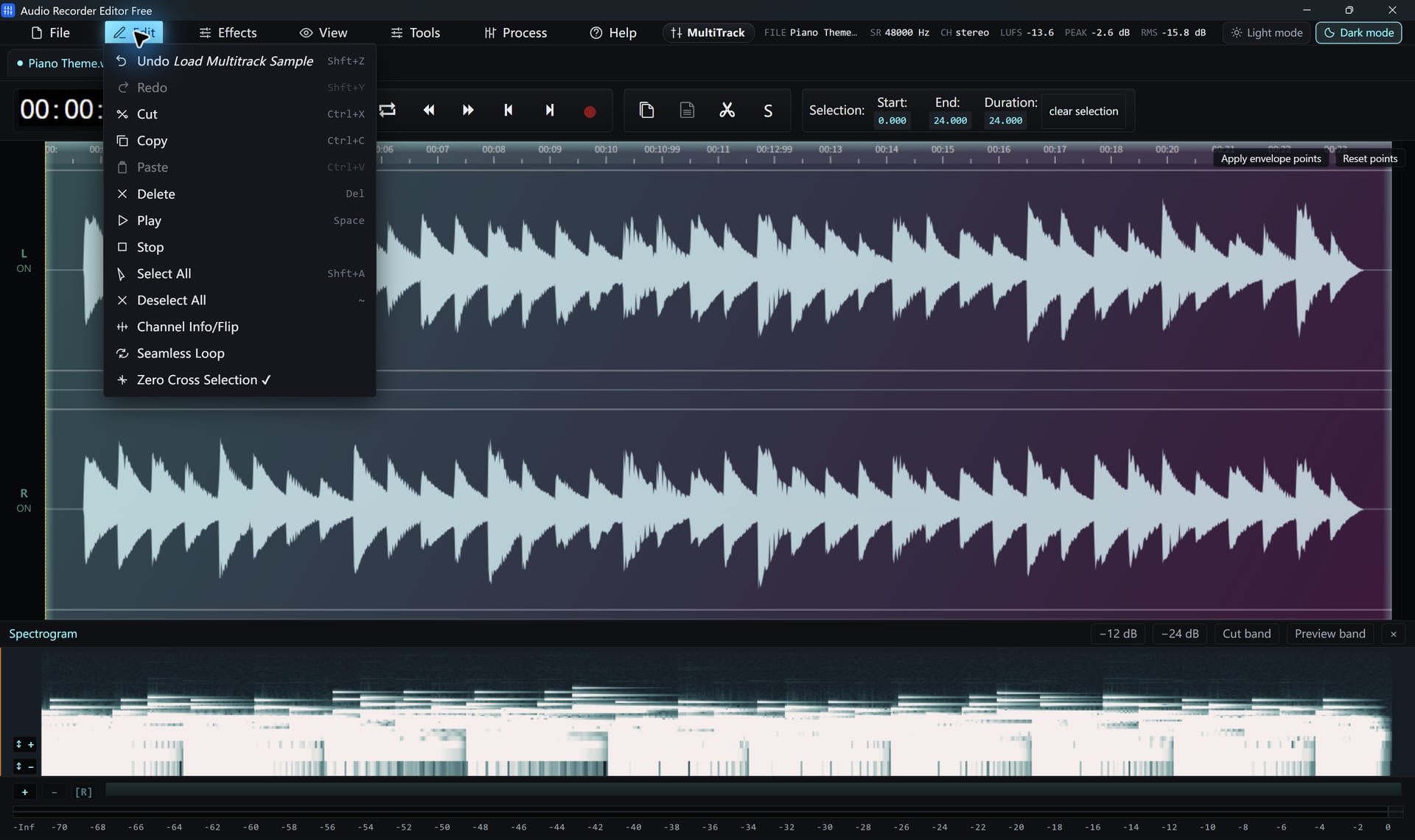
Method 1: Keep the selection
- Open the file and drag across the part you want to keep.
- Fine-tune the start and end by typing exact times.
- Turn on Snap to zero crossings to avoid a click at the cut.
- Trim the file to the selected region. Press Ctrl+K and type “trim” to find the command quickly.
- Save or export the result.
Method 2: Export just the selection
Select the part and choose Export selection. You get a new file containing only that part, and the original stays untouched.
Make the edges sound natural
- Add a short Fade In at the start and Fade Out at the end, half a second is often enough.
- Zoom in to place cuts exactly between words.
Trimming a lossy MP3 and saving it as MP3 again re-encodes it. Use a high bitrate to keep quality.
Follow along for freeAudio Recorder Editor Free has every tool in this tutorial. No registration.
Free DownloadQuestions about this task
How do I remove a part from the middle?
Select it and press Delete. The parts on either side join up automatically.
Try It On Your Own Audio
Audio Recorder Editor Free costs nothing. Install it and follow along.
Download Free for WindowsFree forever · Windows 11 & 10 (64-bit) · No registration